

Windows 11 looks clean and modern on the surface, but many of its most useful tools are quietly hidden in menus that most users never explore. From productivity boosters to privacy controls, these built-in features can make your PC faster, easier to use, and far more efficient.
Whether you’re a student, remote worker, gamer, or casual user, learning a few hidden Windows 11 tricks can save time every day.
In this guide, we’ll explore the best hidden Windows 11 features most people never use — and how you can start using them today.
Why This Topic Matters in 2026
Windows 11 continues to evolve with regular updates, AI-powered tools, and improved multitasking features. Yet many users still only use basic functions like browsing, file storage, and app launching.
The problem? Powerful built-in tools often stay buried inside settings menus.
Knowing these hidden features helps you:
- Work faster
- Improve system organization
- Increase privacy and security
- Reduce reliance on third-party apps
- Get more value from your PC
With Windows becoming smarter and more connected in 2026, understanding these tools is more important than ever.
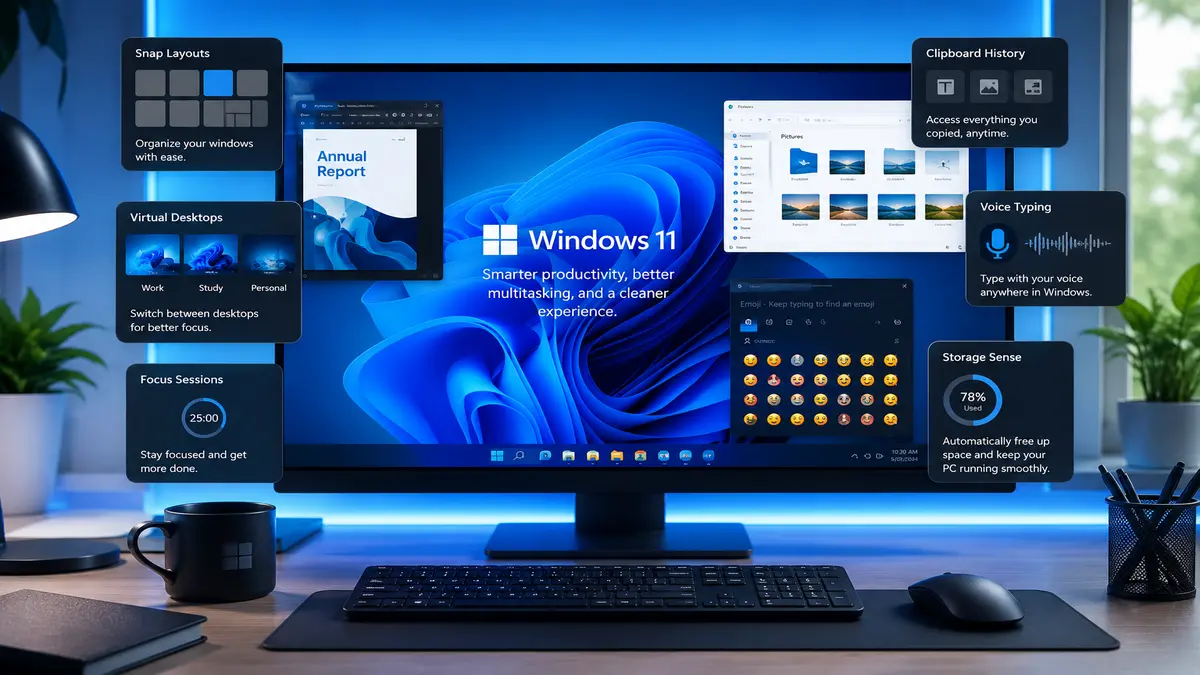
1. Clipboard History Makes Copy and Paste Smarter
Most users still copy and paste one item at a time. Windows 11 actually includes a clipboard history feature that stores multiple copied items.
How to Enable Clipboard History
- Press Windows + V
- Click Turn On
- Start copying text, links, or images
Now you can access previously copied content anytime you use the same shortcut.
Why It’s Useful
- Quickly reuse copied text
- Save time while writing emails or documents
- Store multiple links during research
This feature is especially helpful for students, writers, and remote workers.
2. Snap Layouts Improve Multitasking
Windows 11 introduced Snap Layouts, but many users barely touch them.
How Snap Layouts Work
Hover your mouse over the maximize button on any window. You’ll see layout options for organizing multiple apps on screen.
Best Use Cases
- Writing while researching online
- Comparing documents side-by-side
- Managing video calls and notes simultaneously
Pro Tip
Use the shortcut:
Windows + Z
to open Snap Layout options instantly.
3. Focus Sessions Reduce Distractions
Distractions are everywhere, especially during work or study hours. Windows 11 includes a built-in productivity tool called Focus Sessions.
How to Start a Focus Session
- Open the Clock app
- Select Focus Sessions
- Set your timer
- Start working distraction-free
Features Included
- Pomodoro-style timers
- Break reminders
- Spotify integration
- Task tracking
It’s a surprisingly effective feature for maintaining concentration without downloading extra apps.
4. Voice Typing Speeds Up Writing
Typing long emails or notes can be tiring. Windows 11 includes a built-in voice typing tool that works across most apps.
How to Use Voice Typing
Press:
Windows + H
Then start speaking naturally.
Where It Works Well
- Emails
- Documents
- Notes
- Search bars
- Messaging apps
Voice recognition has improved significantly in recent Windows updates, making it useful for everyday productivity.
5. Dynamic Refresh Rate Saves Battery Life
Many laptops support high refresh rate displays, but running them constantly can drain battery life.
Windows 11 includes Dynamic Refresh Rate (DRR), which automatically adjusts the refresh rate based on your activity.
How to Enable It
- Open Settings
- Go to System > Display > Advanced Display
- Select Dynamic under refresh rate
Benefits
- Better battery performance
- Smoother scrolling when needed
- Reduced power consumption
This feature is especially useful for students and travelers using laptops on the go.
6. Nearby Sharing Makes File Transfers Easier
Instead of emailing files to yourself, Windows 11 lets you share files wirelessly between nearby PCs.
How to Turn On Nearby Sharing
- Open Settings
- Go to System > Nearby Sharing
- Enable sharing
Great For
- Sending photos quickly
- Sharing presentations
- Moving files between devices
It works similarly to AirDrop but for Windows devices.
7. Storage Sense Cleans Your PC Automatically
Many PCs slow down because of unnecessary temporary files and storage clutter.
Storage Sense helps automate cleanup.
Enable Storage Sense
- Open Settings
- Go to System > Storage
- Turn on Storage Sense
What It Removes
- Temporary files
- Recycle Bin items
- Old downloads
- Cached data
Regular cleanup improves performance and frees up storage space.
Common Mistakes to Avoid
Ignoring Keyboard Shortcuts
Many Windows 11 features work best through shortcuts. Learning a few things can dramatically improve productivity.
Installing Too Many Third-Party Apps
Windows 11 already includes many useful tools. Installing unnecessary software may slow your PC or create security risks.
Disabling System Updates
Some hidden features only appear after major updates. Keeping Windows updated ensures better security and access to the latest improvements.
Expert Recommendations
Here are a few practical ways to get more from Windows 11:
Customize Your Start Menu
Pin frequently used apps and remove clutter for faster navigation.
Use Virtual Desktops
Separate work, gaming, and personal tasks into different desktops using:
Windows + Tab
Explore Privacy Settings
Review permissions for apps accessing your microphone, camera, and location.
Backup Important Files
Use OneDrive or external storage to prevent accidental data loss.
FAQ
What is the most useful hidden feature in Windows 11?
Clipboard History is one of the most practical hidden features because it immediately improves everyday productivity.
Does Windows 11 have built-in productivity tools?
Yes. Features like Focus Sessions, Snap Layouts, and Virtual Desktops help users stay organized and productive.
Are hidden Windows 11 features safe to use?
Yes. The features mentioned in this article are officially built-in Windows tools provided by Microsoft.
Can hidden Windows 11 settings improve performance?
Some features, like Storage Sense and Dynamic Refresh Rate, can improve system efficiency and battery life.
Do I need third-party apps for these features?
No. All features covered here are built directly into Windows 11.
Conclusion
Windows 11 includes far more useful tools than most people realize. Small features like Clipboard History, Snap Layouts, and Storage Sense may seem simple, but they can noticeably improve your daily workflow.
Instead of downloading extra software, spend a few minutes exploring the built-in tools already available on your PC. You might discover shortcuts and settings that save time every single day.
For more practical tech guides and productivity tips, keep exploring Smartips.blog